


Gallery pics on MCF homepage










Or not. LOL.
Now IB Swetha is up there.
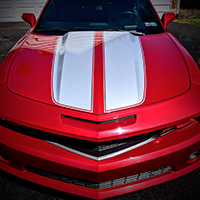
By the way, that's a test gallery that was created during the software change over. The techs simply made a photo gallery with random car pics to test the new software during the change over.
Wonder who's photo gallery is going to pop up next? LOL.
Now IB Swetha is up there.
By the way, that's a test gallery that was created during the software change over. The techs simply made a photo gallery with random car pics to test the new software during the change over.
Wonder who's photo gallery is going to pop up next? LOL.


Joined: Jul 2007
Posts: 1,544
From: Wyoming
Or not. LOL.
Now IB Swetha is up there.
By the way, that's a test gallery that was created during the software change over. The techs simply made a photo gallery with random car pics to test the new software during the change over.
Wonder who's photo gallery is going to pop up next? LOL.
Now IB Swetha is up there.
By the way, that's a test gallery that was created during the software change over. The techs simply made a photo gallery with random car pics to test the new software during the change over.
Wonder who's photo gallery is going to pop up next? LOL.








To add more pictures to your MCF Photo Gallery:
1. Click on "UserCP" on the far left, inside the purple stripe at the top of the home page. This is your User Control Panel.
2. In the "Your Control Panel" column on the left side of the screen, click on "Pictures & Albums" under the "Networking" heading.
3. You should now have a screen showing all your albums. Most of us have only one, but if you have more than one, click on the album you want to add pictures to.
4. You should now see thumbnail versions of all the pictures in your album. Above (and below) the box with the thumbnail pictures, on the left side, you should see a link "Upload Pictures". Click on it to upload pictures into your album.
Side Note: I you are a member of a Social Group here on the forum, there is a link in the purple stripe under the thumbnails to add pictures from your album to the Social Group!
5. In the Upload Pictures screen, you will also see the limits for your album. It will show you how much space you have left in your album. Uploading the pictures should be self explanatory from there.
Hope this helps!
1. Click on "UserCP" on the far left, inside the purple stripe at the top of the home page. This is your User Control Panel.
2. In the "Your Control Panel" column on the left side of the screen, click on "Pictures & Albums" under the "Networking" heading.
3. You should now have a screen showing all your albums. Most of us have only one, but if you have more than one, click on the album you want to add pictures to.
4. You should now see thumbnail versions of all the pictures in your album. Above (and below) the box with the thumbnail pictures, on the left side, you should see a link "Upload Pictures". Click on it to upload pictures into your album.
Side Note: I you are a member of a Social Group here on the forum, there is a link in the purple stripe under the thumbnails to add pictures from your album to the Social Group!
5. In the Upload Pictures screen, you will also see the limits for your album. It will show you how much space you have left in your album. Uploading the pictures should be self explanatory from there.
Hope this helps!

Thread
Thread Starter
Forum
Replies
Last Post
Montelicious
MCF Website Problems & Issues
0
Jun 10, 2010 06:15 PM
RocknSS04
General Monte Carlo Talk
8
Feb 26, 2007 11:11 AM